

Window TilingBuilt into macOS 15+
Arrange side by side
Keep several windows visible at once — drag a window to the screen edge or use the green button.
Window management for Mac
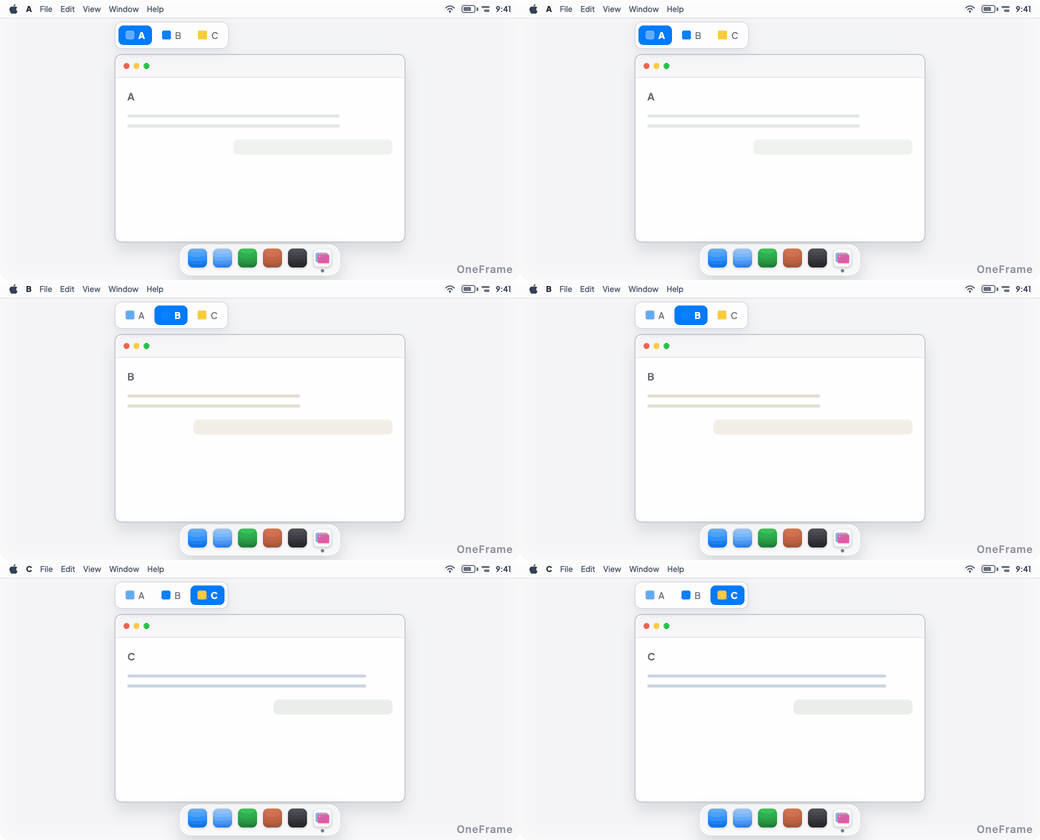
Keep the windows you use together in a stack. Each stack has its own name and saves your window setup.
Open the app windows you want to use together.
Drag a window onto the stack’s tab bar. OneFrame aligns its position and size with the other windows.
Click a tab, press ⌃⌥←/→, or use the quick switcher to select a window.
Side by side, in groups, or in one frame. Choose the way that fits your work.
Window TilingBuilt into macOS 15+
Keep several windows visible at once — drag a window to the screen edge or use the green button.

Stage ManagerBuilt into macOS
Bring a group of apps forward together with Stage Manager.
OneFrame
Add selected windows to OneFrame. Keep the same position and size as you switch tabs.
Free for one stack and up to 4 windows.
$14.99
Most standard app windows that can be resized are supported. You can add several windows from the same app to one stack. Fixed-size dialogs are not supported.
Yes. You can create stacks on each display. OneFrame restores them when you reconnect the display.
Yes. Stack names, window lists, the selected window, and positions are saved on your Mac and restored after a restart or waking from sleep.
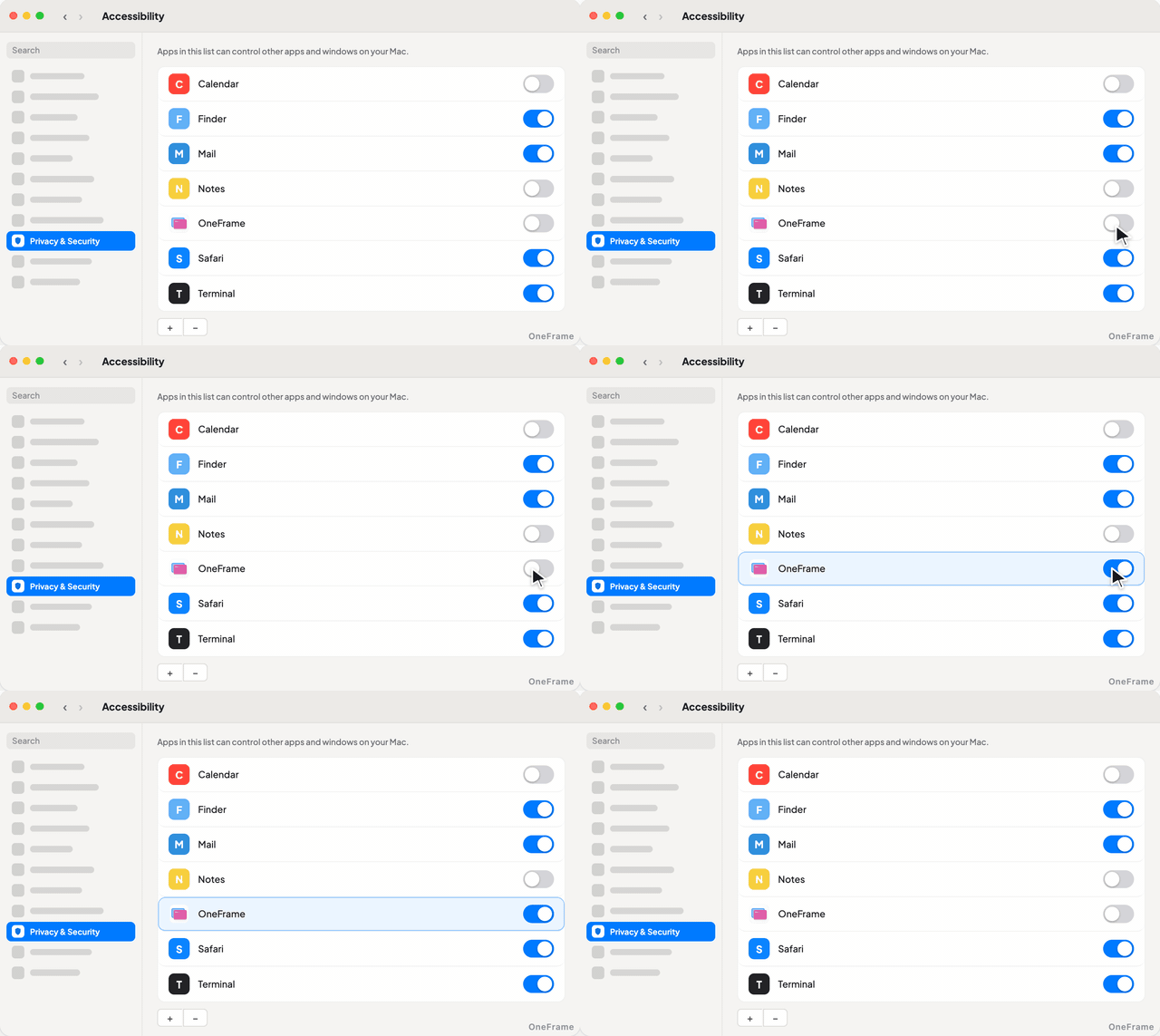
OneFrame uses macOS Accessibility to identify, move, resize, and restore the windows you add. Window titles stay on your Mac. You can turn off anonymous system information sharing for update checks in Settings.
Yes. Turn on “Receive beta updates” in the app’s Settings to try new features before the stable release. Beta versions may be unstable. Turning it off keeps your current version until the next stable release.